Set out the scope and price before work begins, then keep every client decision with the correct revision.
Before you begin
- Create the client with a default billing contact.
- Complete the workspace legal name and business address. TimeLodge copies these details when you issue the estimate.
- Confirm the currency, scope, price, tax treatment, discount, terms, and expiry date with your client.
- Use a recipient address you control when you intend to send. Send estimate queues an external email outside a safely configured local environment.
Roles and permissions
An Owner, Admin, or Finance Admin can create, change, issue, send, revise, and manually accept estimates. These roles can also turn an accepted estimate into a project budget or invoice draft.
A Project Manager or Member cannot open Estimates. A client portal visitor does not sign in. They can only view, download, accept, or decline the estimate reached through its secure response link.
Check the estimate settings
This version has no separate estimate settings page. TimeLodge uses three sources when you create and issue an estimate:
| Source | What it controls |
|---|---|
| Workspace details | The legal issuer name, address, and tax or business number copied at issue. |
| Client details | The client identity, currency, and default billing contact. |
| Commercial details | The estimate's Client, Title, Currency, Issue date, and Expiry date. |
TimeLodge assigns the permanent number when you select Issue and lock. A draft uses a temporary Draft # label.
Understand the status changes first
| Status | What changes |
|---|---|
| Draft | You can change commercial details, lines, discount, tax, terms, and notes. |
| Issued | TimeLodge assigns the estimate number and locks that revision. Save draft and Issue and lock disappear. |
| Sent | The safe delivery finishes. The secure client response link and matching PDF belong to this revision. |
| Viewed | The client portal has opened the sent estimate. |
| Accepted | The acceptance evidence appears. Send and manual acceptance actions disappear. Project and invoice conversion become available. |
| Declined | The client decision appears. Send and manual acceptance actions disappear. |
| Superseded | A newer revision replaces a non-accepted issued revision. |
Use New revision when an issued estimate needs a change. Do not recreate or overwrite the locked revision.
Create the draft
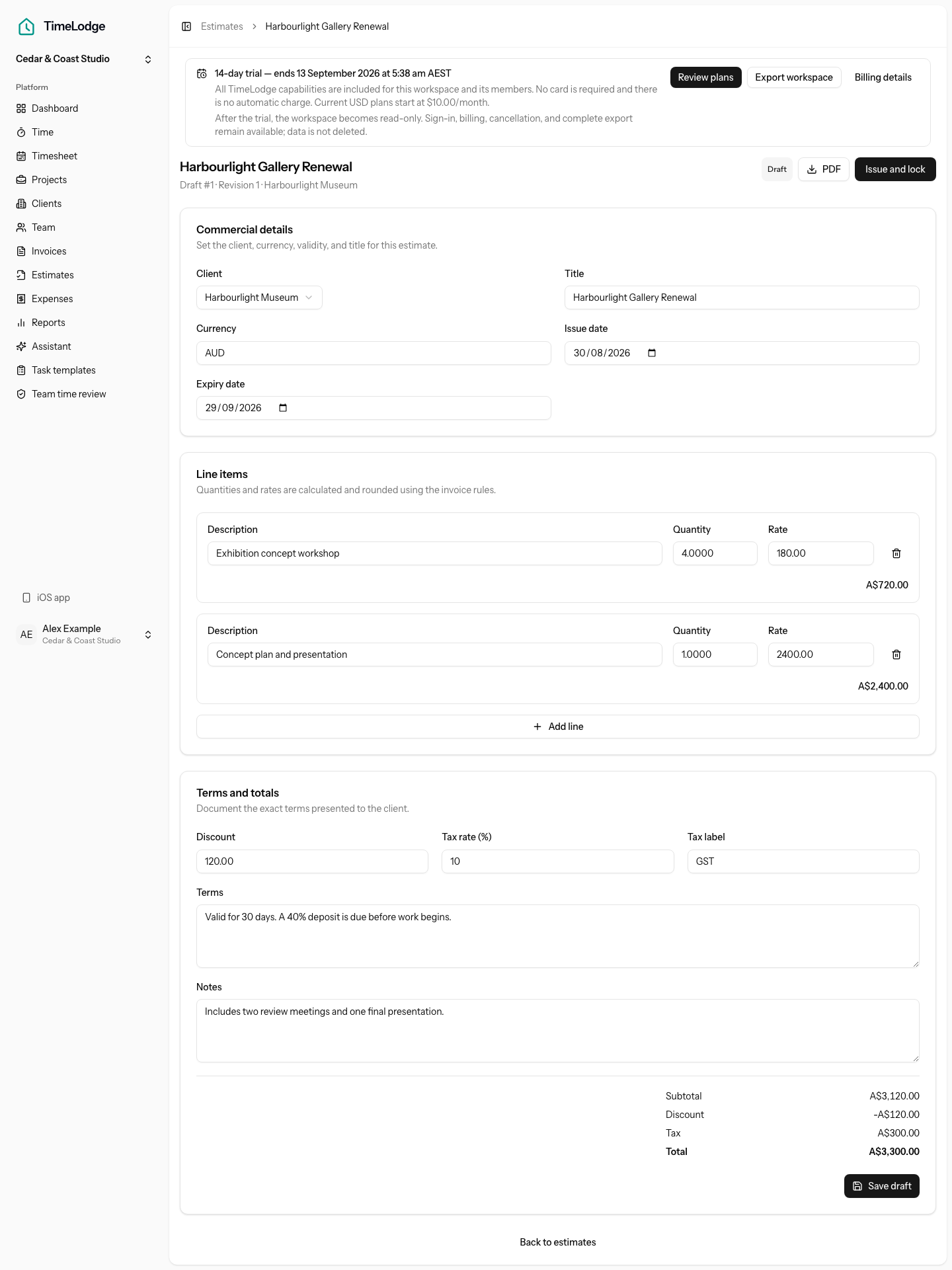
- Open Estimates and select New estimate.
- Choose Harbourlight Museum under Client.
- Enter
Harbourlight Gallery Renewalunder Title. - Confirm Currency and Issue date, then enter the Expiry date.
- Enter the first Description, Quantity, and Rate.
- Select Add line, then complete the next line.
- Enter the agreed amount under Discount.
- Enter the percentage under Tax rate (%) and its name under Tax label.
- Enter the client-facing agreement under Terms.
- Enter any extra client-facing context under Notes.
- Check Subtotal, Discount, Tax, and Total.
- Select Save draft.
Expected result: Draft estimate created. appears. The estimate directory shows Draft and the saved total.
Change the draft before issue
- Open the draft with View.
- Correct the commercial fields, lines, terms, or notes.
- Check the recalculated total.
- Select Save draft.
Expected result: Draft estimate updated. appears. Reopening the draft keeps the same tax rate, total, and workspace-local dates.
Issue and send the estimate
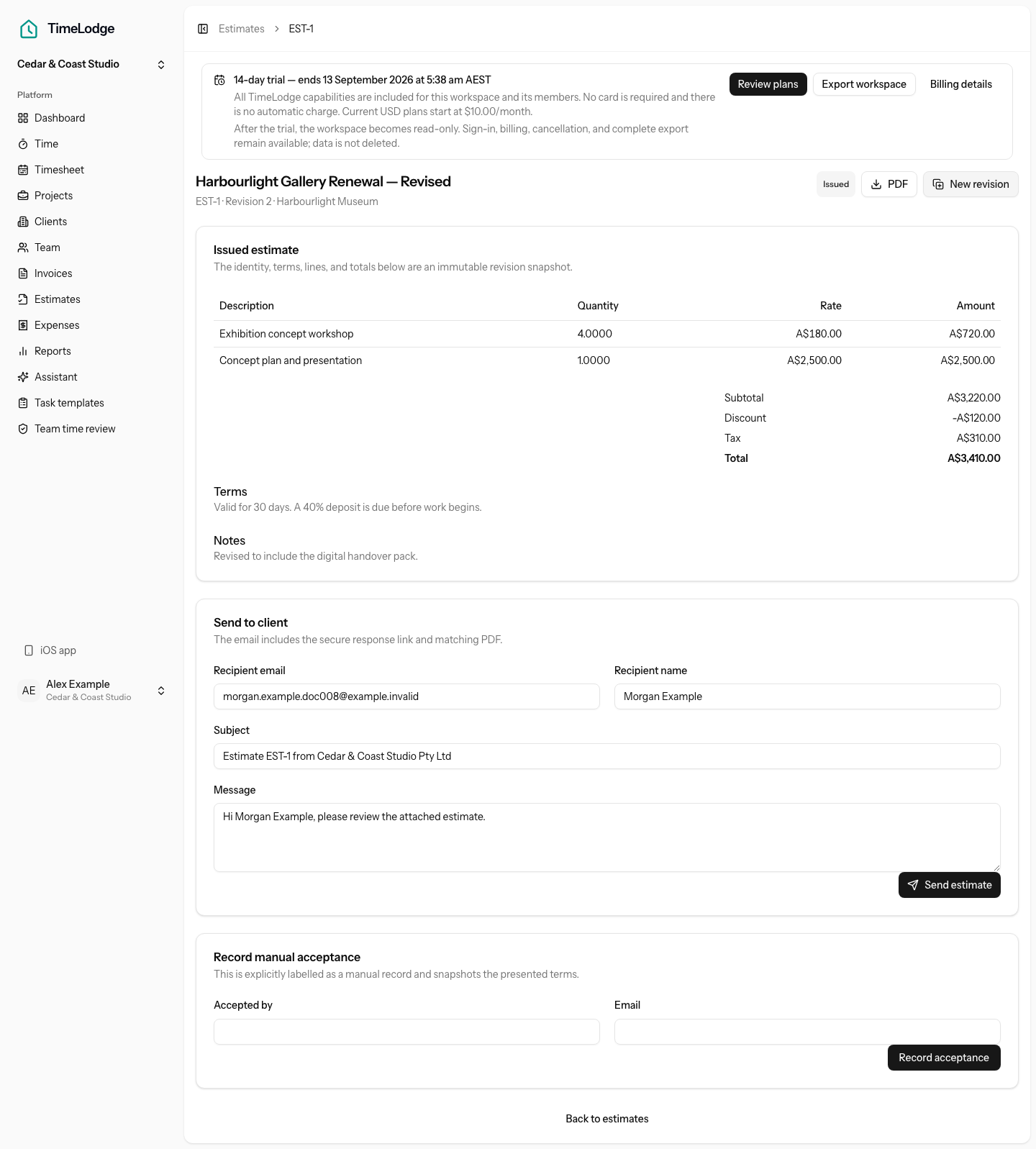
- Check every draft field before continuing. You cannot edit this revision after the next step.
- Select Issue and lock.
- Confirm that the badge changes to Issued and the page says the revision is an immutable snapshot.
- Review Recipient email, Recipient name, Subject, and Message under Send to client.
- Select Send estimate only when you intend to queue the external email.
- Reload the page after delivery completes and confirm the badge changes to Sent.
The documentation walkthrough used the local log mailer and an @example.invalid address, so nothing left the local environment. In a normal workspace, Send estimate emails the recipient. Do not use a real address for practice.
Use the client portal
- Open the secure response link from the safely captured estimate email.
- Check the issuer, client, expiry, lines, totals, terms, and notes.
- Select Download PDF to open the matching numbered revision.
- Enter the client name under Name.
- Enter the client email under Email when it should form part of the acceptance evidence.
- Select Accept estimate to accept this revision, or select Decline to decline it.
Expected result: the portal shows Estimate accepted. Thank you. with Accepted, or Estimate declined. with Declined. The owner page shows the same decision after reload. A declined or accepted portal no longer shows response controls.
Create a revision
- Open the issued, sent, viewed, accepted, or declined estimate.
- Select New revision.
- Change the copied draft fields that need agreement.
- Select Save draft.
- Select Issue and lock when the revised scope is ready.
Expected result: the new page shows the same estimate number with the next revision number and a new Draft state before issue. The earlier revision stays locked. A replaced declined revision changes to Superseded.
Record acceptance manually
Use this only when you already received the client's decision through another channel and can record it accurately.
- Open an Issued, Sent, or Viewed estimate.
- Enter the client's name under Accepted by.
- Enter the client's email under Email when you have it.
- Select Record acceptance.
Expected result: Manual acceptance recorded. appears. The badge changes to Accepted, and Acceptance recorded identifies the method as Manually recorded. This action disappears after acceptance or decline.
Create the project or invoice
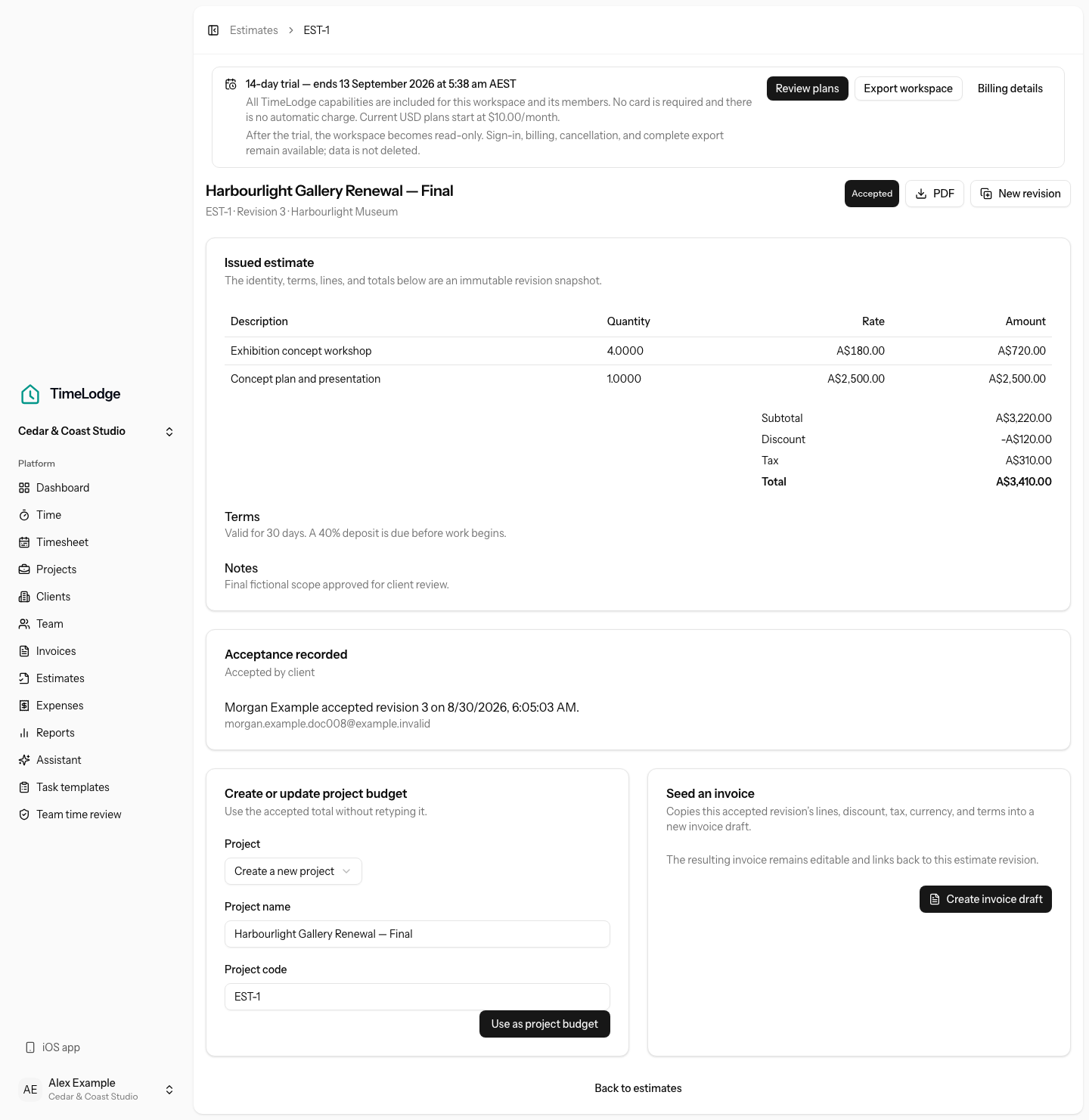
- Open the accepted estimate.
- Under Create or update project budget, choose Create a new project or an existing project under Project.
- Check Project name and Project code when creating a project.
- Select Use as project budget.
- Return to the accepted estimate.
- Select Create invoice from accepted estimate.
Expected result: a new project uses the accepted total as its fixed-fee budget. The invoice draft copies the accepted revision's lines, discount, tax, currency, and terms without sending or issuing the invoice.
Download the PDF
- Open any saved estimate revision.
- Select PDF on the owner page.
- Check that the filename contains the estimate number and revision, such as
EST-1-r3.pdf.
The client portal's Download PDF opens the same numbered revision. A PDF download does not send the estimate or change its status.
Expected result
You can keep draft changes editable, lock an issued revision, capture a client decision, and preserve earlier versions. After acceptance, you can start the project or invoice without retyping the agreed commercial values.
Troubleshooting
- A client is missing: Confirm that the client is active and has a billing contact. Follow Create and manage clients when details need correction.
- The total is wrong: Recheck each Quantity and Rate, then check whether Discount reduces the taxable subtotal before Tax rate (%) applies.
- Issue and lock is missing: Only an editable Draft can be issued. Open the current draft revision or select New revision on a locked estimate.
- Send estimate is missing: The estimate may be unissued, expired, accepted, declined, or superseded. Check its badge before creating another revision.
- The status remains Issued: Delivery has not completed. Reload after the local or configured mail transport finishes, then check for Sent.
- The portal has no response controls: The revision is expired, declined, accepted, or otherwise unavailable for a new decision.
- Record manual acceptance is missing: Manual acceptance is available only for an unexpired issued, sent, or viewed revision.
- Project or invoice actions are missing: The estimate needs recorded acceptance, and your role needs finance access.
- Create invoice draft opens an earlier invoice: Each accepted revision links to one invoice draft. Open that draft instead of creating a duplicate.
Related guides
Next, open Estimates and draft the next scope only when its client, price, tax, and terms are ready for review.