Create reusable work categories and their default hourly rates, including architecture examples for concept design, site analysis, and review work.
Before you begin
- Decide on short task names and unique internal codes.
- Decide whether each task is normally billable and available for new work.
- Confirm the workspace currency and the date from which each rate applies.
Roles and permissions
An Owner, Admin, or Project Manager can manage the workspace task library. Cost rate is hidden when your role cannot view private costs.
Create a task and its rates
- Select Task templates in the sidebar.
- Select New task.
- Enter Name. Use a work category such as “Concept design”, not a person's name or a client name.
- Enter Code when your team uses reporting codes. It is optional and must be unique within the workspace.
- Leave Billable by default selected for work that normally belongs on an invoice. Clear it for internal work.
- Leave Active for new project work selected when people should be able to choose the task.
- Enter the hourly Bill rate and, when shown, Cost rate. A blank value appears as Use lower precedence and falls through to the next configured project, client, person, or workspace rule; it does not become zero.
- Check Effective from. It defaults to today's date in the workspace timezone. Choose a future date when a new rate must not apply yet.
- Select Save task.
- Repeat these steps for each useful work category.
Check and correct a task
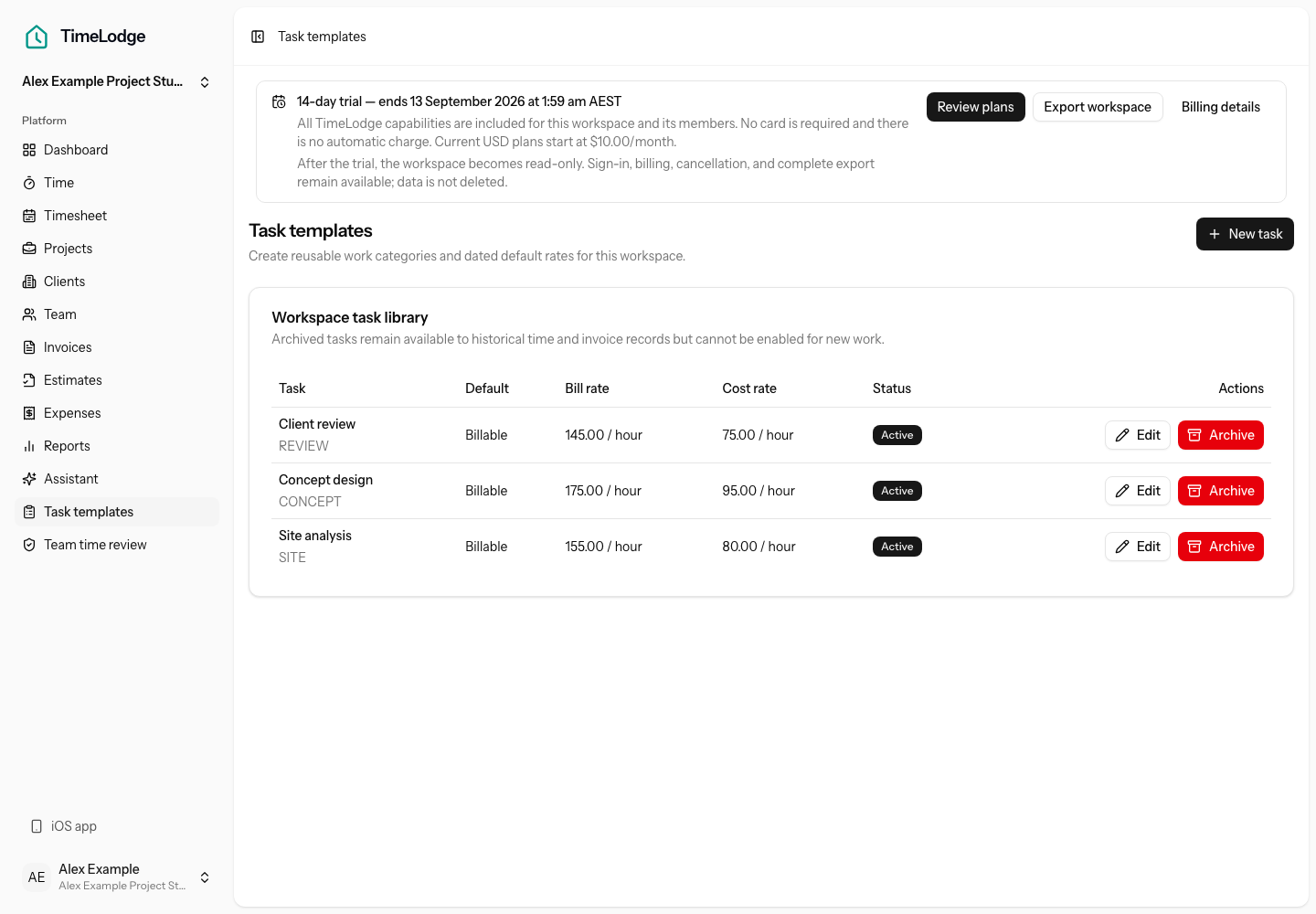
- Find the task in Workspace task library.
- Check its code, billable default, rates, and Active status.
- Select Edit.
- Correct the fields and choose the date the new rate becomes effective.
- Select Save task.
The edit dialog states that earlier previews and saved snapshots stay unchanged. Use a new effective date for a planned rate change; correct the affected time entry separately if an old entry itself is wrong.
Expected result
Each task appears as Active with its code and rate per hour. Projects using All workspace tasks receive active templates automatically. Projects using Selected tasks only require you to choose tasks through Tasks & rates.
Troubleshooting
- “The name field is required”: Enter a task name and select Save task again.
- The code is rejected: Use another code; codes must be unique in the workspace.
- The list says “Use lower precedence”: Enter a dated task rate, or confirm that a lower project, client, person, or workspace rule supplies the intended amount.
- The task is missing from a project: Confirm it is Active for new project work, then check that project's task availability.
- A task was archived by mistake: The current task library has no restore action. Keep the archived task for history and create a clearly named replacement with a new unique code for future work.
Related guides
After the tasks are available on an active project, return to Dashboard to start a timer or add completed work.