Add the customer record that projects and billing documents use, then keep its contact and billing defaults together.
Before you begin
- Sign in to the correct workspace.
- Have the client's preferred name, currency, locale, billing address, and billing contact ready.
- Use fictional or approved business details. Do not put passwords, payment details, or private credentials in Internal notes.
Roles and permissions
An Owner, Admin, Project Manager, or Finance Admin can manage clients. If Clients or New client is missing, ask an Owner or Admin to check your role.
Create a client
- Select Clients in the sidebar.
- Select New client.
- Enter the required Display name. This is the everyday name shown across the workspace.
- Complete the optional identity fields:
- Legal name is for the registered name when it differs.
- Internal code is your team's reference.
- Tax number is the identifier used for billing.
- Check Currency and Locale. They default from the workspace and become defaults for new projects and documents; authorised users can override them later.
- Add the Billing address and team-only Internal notes when needed.
- Under Billing contacts, select Add contact. Enter the contact's name and email. The contact marked Default billing receives billing documents by default.
- Select Create client.
If TimeLodge shows Possible duplicate clients, compare the suggested records before saving. You can cancel and use the existing client, or continue when the customer is genuinely different.
Check and correct the client
- In Client directory, select the client's display name.
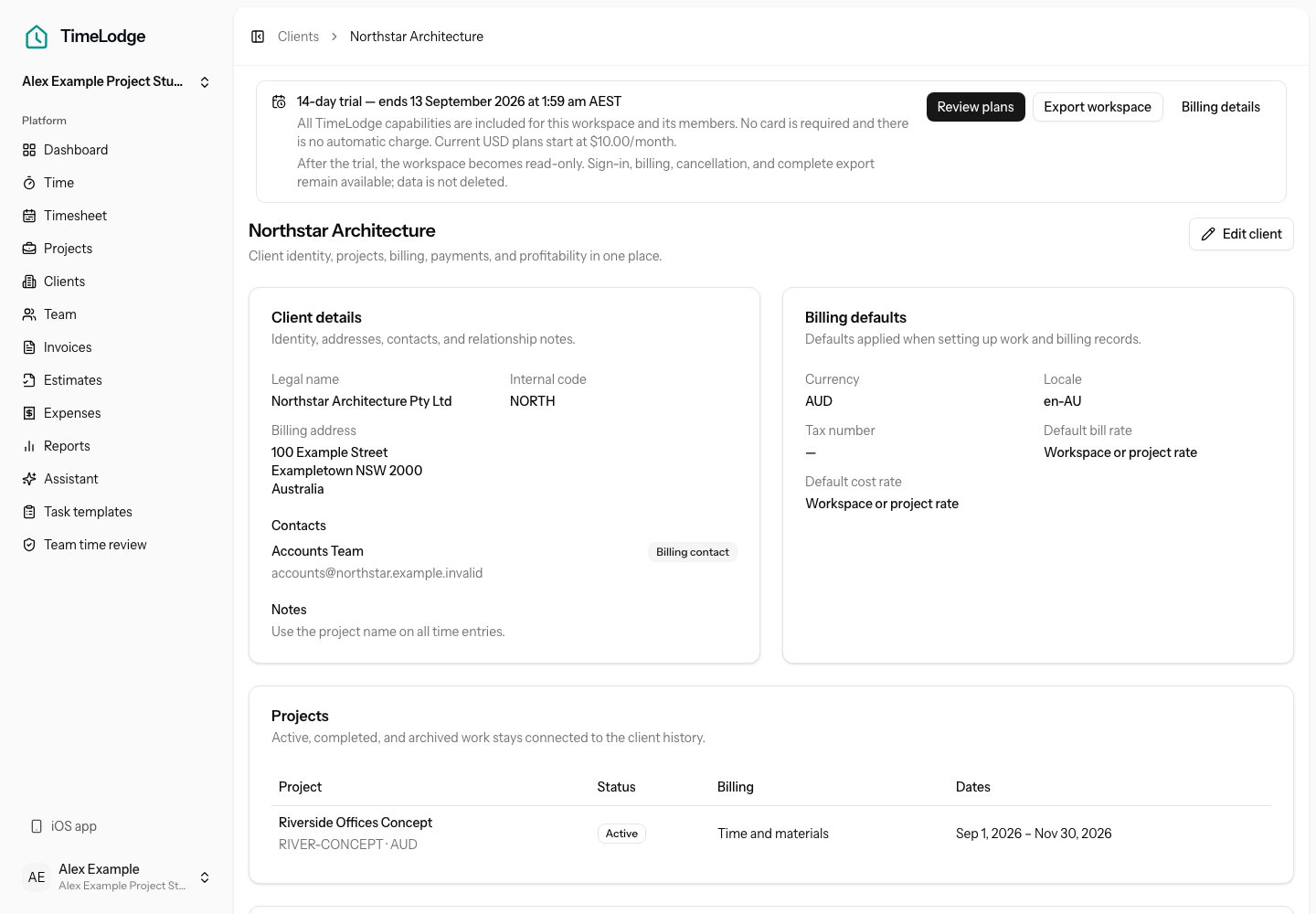
- Confirm Client details, Billing defaults, and the projects list.
- Select Edit client to correct a name, code, address, default, note, or billing contact.
- Select Save changes, then check the updated detail page.
Expected result
The client appears as Active in Client directory and is available in the Client field when a project is created. Its currency, locale, address, and default billing contact are available to later billing workflows.
Troubleshooting
- “The display name field is required”: Enter a customer name, then save again.
- A likely duplicate appears: Open the suggested client first. Edit that record when it is the same customer.
- The wrong currency was saved: Select Edit client and correct it before creating financial documents. Existing project and document currencies do not silently change.
- A client should no longer accept work: Follow Archive clients, projects, and tasks; do not rename it to “old” or reuse it for another customer.
Related guides
Create the client first, then use it to set up the work you want to track.