Accept a team invitation, switch between your workspaces, submit your time, and respond when an approver returns a period for correction.
Before you begin
- Sign in with the same email address that received the invitation.
- Ask the team owner or admin which projects and tasks you should use.
- Add useful notes without credentials, payment details, or private customer information.
Roles and permissions
Every active role can accept its own invitation, switch among teams it belongs to, and track its own time against available projects and tasks. A Member cannot manage invitations, other members, approval settings, or another person's periods.
You can edit your own Draft or Rejected period. Submitted time is locked pending review, and Approved time is locked and eligible for invoicing.
Accept or decline an invitation
- Open Settings > Invitations.
- Check the inviter and team name.
- Select Join to become an active member, or select Decline when you do not recognise or do not want the invitation.
Expected result: after Join, the invitation leaves the pending list and the team becomes available in the workspace switcher. After Decline, no membership is created; ask the owner to send a new invitation if you later need access.
An expired or cancelled invitation cannot be joined. Ask the owner or admin to send a fresh invitation rather than requesting an access link from another person.
Switch workspaces
- Open the workspace switcher showing the current team name.
- Select the team you want to use.
- Check that the sidebar and page heading show the selected team before recording time.
Expected result: the selected team's projects, tasks, time, and settings replace the previous workspace context. Your sign-in and personal profile do not change.
Submit your time
- Open Timesheet.
- Use Previous week, This week, or Next week to open the correct period.
- Enter time in the available project and task row, then select Save week.
- Use Day view and Actions > Edit to add or correct a note on an individual entry.
- Select Submit for approval.
Expected result: the period shows Submitted and These hours are locked pending review. You cannot edit the entries while the period waits for review.
Respond to a rejection
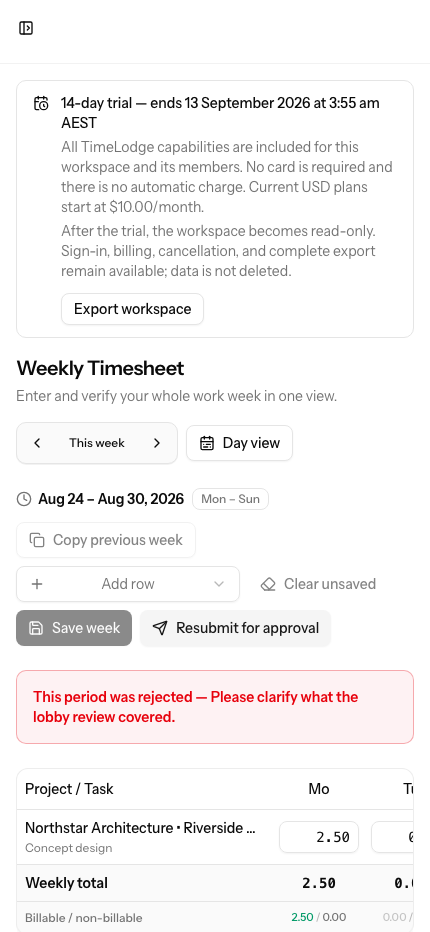
- Open the rejected week in Timesheet.
- Read This period was rejected and the approver's reason.
- Use Day view, then Actions > Edit, to correct the affected duration, project, task, or Notes.
- Select Save Changes.
- Return to the weekly view and select Resubmit for approval.
Expected result: the corrected period returns to Submitted and locks again while it waits for review.
Respond to an approved period reopened for correction
- Open the affected week in Timesheet.
- Confirm the period is editable Draft and Submit for approval is available again.
- Correct the requested records in the weekly grid or Day view.
- Select Save week when you changed a weekly cell.
- Select Submit for approval.
Expected result: the period returns to Submitted. Reopening removes the approval lock, so the period must be approved again before its time is eligible for invoicing.
Leave a shared team
- Open Settings > Teams.
- Select the Leave control for your shared team.
- Check the team name in Leave team.
- Select Leave team.
Leaving ends your active access immediately and removes the team from your workspace list. The team's historical records remain. You cannot leave your personal workspace, and an Owner must transfer ownership before leaving a shared workspace.
Leaving is not self-reversible. An owner or admin must reactivate your inactive membership, choose new access, and confirm your address and rates. Previous project assignments are not restored automatically.
Expected result
You can move between your active workspaces, submit accurate time, see the reason for a rejection, correct returned records, and resubmit them without bypassing approval locks.
Troubleshooting
- No invitation appears: Confirm you signed in with the invited address. Ask the owner to check Pending invitations, correct the address, or resend an expired invitation.
- A team is missing from the switcher: The invitation may still be pending, or your membership may be inactive. Check Settings > Invitations and contact an owner or admin.
- A project or task is missing: Ask an owner or admin to assign the project and make the task available.
- Submit for approval is missing: The owner or admin has not enabled Timesheet approvals, or the period is not eligible to submit.
- The period reports a missing note: Open Day view, use Actions > Edit, add Notes, and save before resubmitting.
- You left by mistake: Contact an owner or admin. Only they can reactivate the archived membership, and they must choose your access again.
Related guides
- Manage your team and timesheet approvals
- Track and manage your time
- Navigate your workspace and dashboard
After submitting, return to Timesheet to check whether the period is still waiting, rejected, or approved.