Invite people, give them the minimum access they need, manage active and inactive memberships, and review submitted time safely.
Before you begin
- Use an address that belongs to the person you intend to invite. Never put an access link or token in a private note.
- Create the projects and tasks that members will use before assigning project access.
- Ask members to add clear notes to billable time before they submit it.
Roles and permissions
An Owner or Admin can invite people, edit non-owner member details, assign project access, manage rates, and deactivate or reactivate eligible members. An Owner can also request ownership transfer for a shared workspace. A personal workspace cannot transfer ownership.
An Owner or Admin can turn Timesheet approvals on or off. An Owner, Admin, or Project Manager can approve another person's period only when every project containing time or expenses in that period is a project they manage. An approver cannot approve their own period. Finance Admin and Member do not receive approval access from their role.
Invite a person
- Open Settings > Teams.
- Select the Edit control for your team.
- Select Invite member.
- Enter Name and Email address.
- Choose a Role. Member is the safest default for someone who only tracks their own time and expenses.
- Leave Bill rate or Cost rate blank when the value is unknown. A blank value inherits the next applicable default; it is not zero. Cost rate is private.
- Select Send invitation.
Expected result: Pending invitations shows the person's name, address, role, and a pending state. They do not become an active member until they select Join.
Invitation states have these effects:
- Pending can be joined or declined by the invited person. Use Resend invitation, Correct invitation email, or Cancel invitation while it remains pending.
- Expired cannot be joined. Resend invitation replaces the expired access link with a fresh one.
- Accepted becomes an active membership and leaves Pending invitations.
- Declined or Cancelled does not create active access. Cancelling invalidates the outstanding link; send a new invitation if the person later needs access.
When you select Correct invitation email, the original link is cancelled and a fresh invitation is created for the corrected address. Check the address before selecting Replace invitation.
Set roles, project access, and member details
- Open Team.
- Select a person to open their member details.
- Update Team-specific name when the display name should differ only in this team. The member controls their own sign-in email in personal settings.
- Choose the lowest suitable Role:
- Owner has full access, including billing, security, and ownership. Use ownership transfer for an existing member.
- Admin manages the team, people, projects, finances, and reports.
- Project Manager manages assigned projects, clients, approvals, and reports.
- Finance Admin manages clients, finances, invoices, and financial reports.
- Member tracks their own time and expenses.
- Enter Bill rate, Private cost rate, and Effective from only when this person needs a dated rate exception. Clear a rate to remove the exception from that date and inherit the next default.
- Add Private notes only for information authorised administrators need. The member does not see these notes.
- Under project access, select each project the person may use. Enable Manage other people's time only when they should manage that project's people and approvals.
- Save the member details.
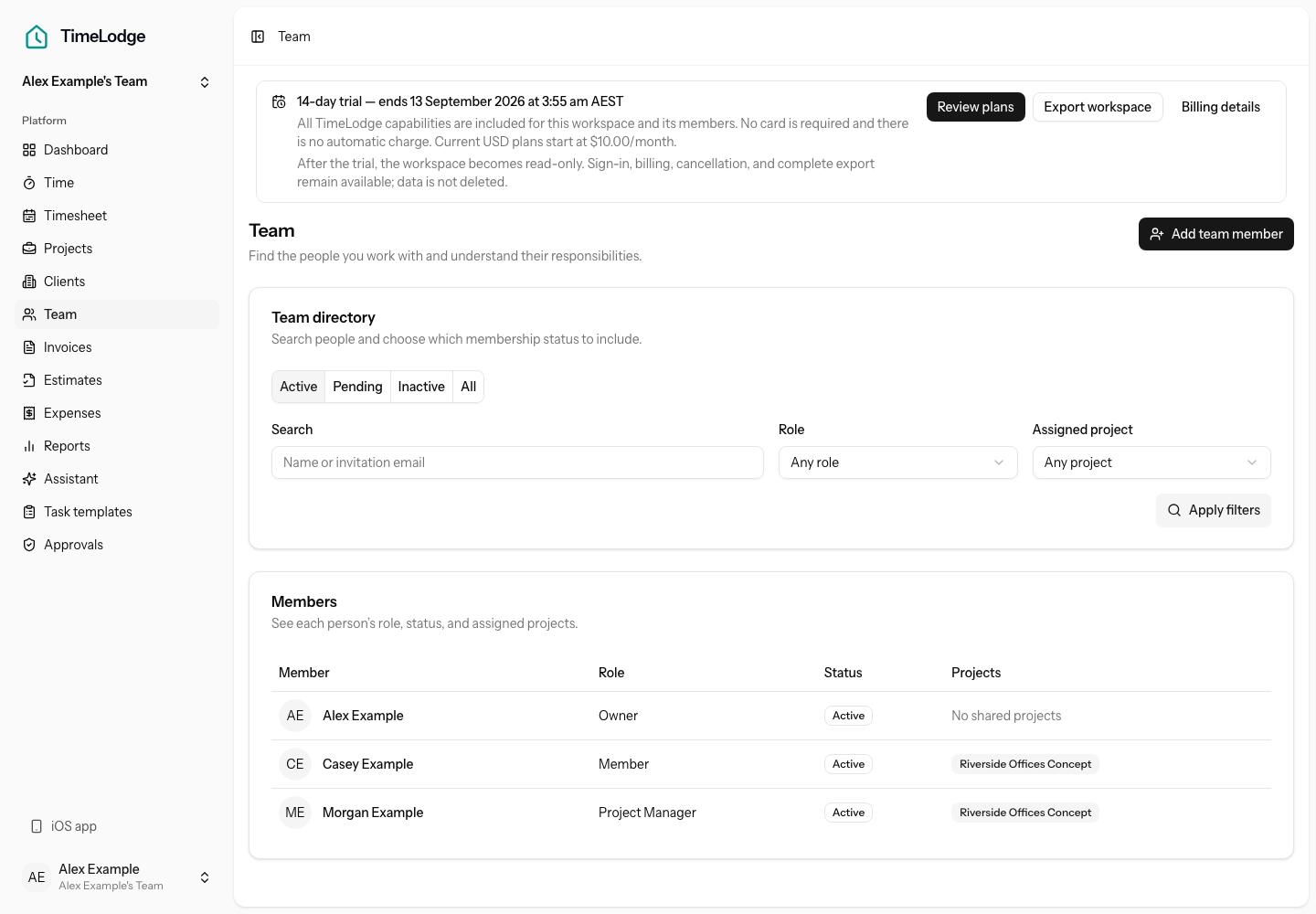
Expected result: the Team directory shows the person's current role and assigned projects without exposing rates or private notes.
Deactivate and reactivate a member
- Open Team and select the active person.
- Select Archive member.
- Review Deactivate team member, including waiting time, retained assignments, reminders, sessions, tokens, and links.
- Select Deactivate member only after responsibilities are covered.
Deactivation ends access immediately and removes the person from active selectors. Historical work, assignments, rates, approvals, invoices, reports, and audit history remain. You cannot deactivate the Owner; transfer ownership first where available.
To restore access:
- Open Team and set Status to Inactive.
- Select the former member, then select Reactivate member.
- Choose a new Role, project access, and whether they may Manage other people's time.
- Confirm that the address belongs to the former member and that rates are correct. Elevated access requires the additional confirmation.
- Select Reactivate member.
Expected result: the person returns to Active. Historical identity and records stay unchanged, but previous assignments are not restored automatically.
Enable timesheet approvals
- Open Settings > Teams and edit the team.
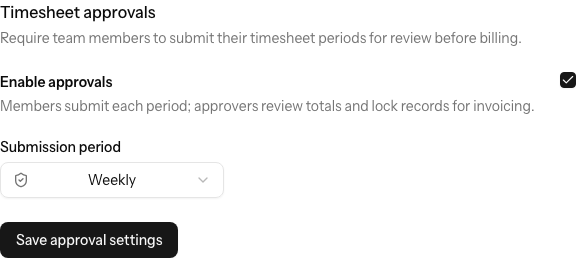
- Under Timesheet approvals, select Enable approvals.
- Choose the Submission period, such as Weekly.
- Select Save approval settings.
Expected result: members see Submit for approval on an eligible timesheet, and authorised reviewers see Approvals.
Approve, reject, or reopen a period
- Open Approvals.
- Select a submitted person and period.
- Review the period total, daily records, projects, tasks, billable state, and notes.
- Choose one action:
- Select Approve when the records are ready. Approval locks the records and makes the time eligible for invoicing.
- Select Reject, enter a required Reason, and confirm rejection when the member must correct their records. Rejection unlocks the period and shares the reason with the member.
- For an approved period, select Reopen for correction, enter a Reason, and select Reopen period. Reopening returns the period to editable Draft; it must be submitted and approved again before invoicing.
Expected result: the approval detail and Approvals queue show the new status. Approve and reject are available only for Submitted periods; reopen is available only for Approved periods.

Transfer ownership of a shared workspace
- Open Settings > Teams and edit a shared workspace.
- Select Transfer ownership to Jordan Example, or the equivalent control for the intended active, verified member.
- Read Complete authority moves with ownership.
- Select Send transfer request.
Nothing changes until the recipient confirms. The request expires after 72 hours and can be cancelled before acceptance. On acceptance, the new Owner receives subscription, team closure, ownership, security, and complete administrative authority; the former owner becomes Admin. Projects, time, expenses, rates, approvals, invoices, and reports stay unchanged.
This cannot be undone by the former owner alone after acceptance. The new owner must initiate another transfer to reverse it. Personal workspaces do not show ownership transfer.
Expected result
Active people have only the role, project access, and rate exception they need. Pending and inactive people are clearly separated. Submitted periods move through Submitted, Rejected, Approved, or reopened Draft without silently changing the underlying time.
Troubleshooting
- An invitation is still pending: Confirm the address, then use Resend invitation. Use Correct invitation email if the address is wrong.
- The invite form says the person is inactive: Open Team, filter to Inactive, and reactivate the existing membership instead of inviting a duplicate.
- An approver cannot see or act on a period: Assign the approver to every project represented in the period and enable Manage other people's time where required.
- A member cannot edit submitted or approved time: Reject the submitted period or use Reopen for correction on the approved period. Do not create replacement entries to bypass the lock.
- Ownership transfer is missing: It is available only to the owner of a shared workspace and requires another active, verified member with login access.
- A former member needs access again: Reactivate their inactive membership. Historical data is retained, but choose new access deliberately because old assignments are not restored.
Related guides
Review pending invitations, inactive people, and the Approvals queue regularly.