Find the work you need from one starting point and understand which actions appear for your role.
Before you begin
- Sign in and finish the first workspace setup.
- Make sure you can open Dashboard.
Roles and permissions
Your role decides which destinations and actions TimeLodge shows.
An ordinary Member should not expect every management or finance control shown here. If a destination or action is missing, ask an Owner or Admin whether your role includes it.
Find your way around the dashboard
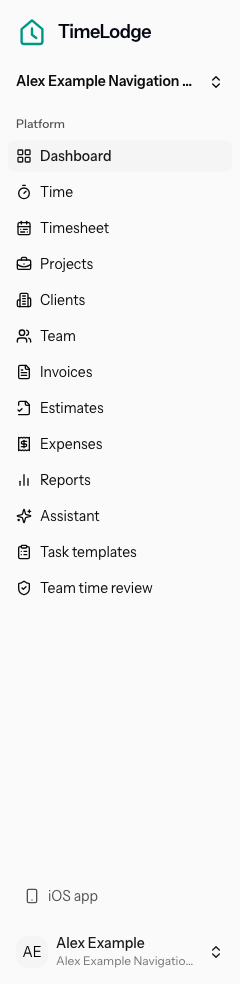
- Select Dashboard in the left sidebar.
- Check the greeting and date at the top of the page.
- Use Setup route for unfinished setup guidance.
- Use What are you working on? to start a timer or select Add completed work.
- Use Quick create to add a record without leaving the dashboard.
- Review the dashboard overview cards for the summaries your role permits. They cover current work and money.
The owner sidebar in the screenshot shows the complete sample navigation. TimeLodge highlights your current destination.
Take the shortest path
| Destination | Shortest path | Page heading or control |
|---|---|---|
| Track time | Select Time in the sidebar. | Time Tracking |
| Find customers | Select Clients in the sidebar. | Clients |
| Find work | Select Projects in the sidebar. | Projects |
| Find people | Select Team in the sidebar. | Team |
| Find billing records | Select Invoices in the sidebar. | Invoices |
| Review results | Select Reports in the sidebar. | Time & utilisation |
| Manage your personal account | Open your account menu, then select Settings. | Settings |
Use quick create

Select the card that matches what you want to add:
- Task — define reusable work.
- Client — add a customer.
- Project — set up their work.
- Invoice — bill completed work.
- Expense — capture a cost.
The dialog keeps you on Dashboard after a successful save. Some cards are hidden or restricted when your role cannot create that record.
Switch workspaces
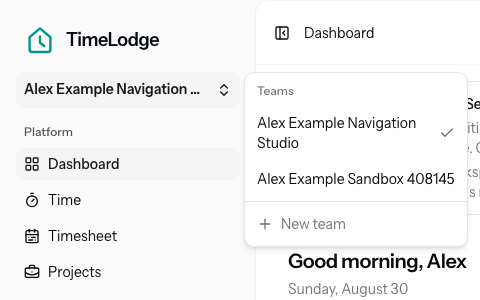
- Select the current workspace name at the top of the sidebar.
- Find the check mark beside your current workspace.
- Select another workspace name.
- Check the name at the top of the sidebar before you add or change anything.
A workspace contains its own clients, projects, and tracked time. Billing records and team access stay with that workspace.
Your personal account is different. It holds your name and sign-in email. It also controls security, invitations, and appearance. Switching workspaces does not create another login or change your personal profile.
New team creates another workspace. A new workspace without an active trial or subscription opens Choose your plan. Stop there unless you intend to review a plan; no purchase is needed to switch back.
Navigate on a narrow screen
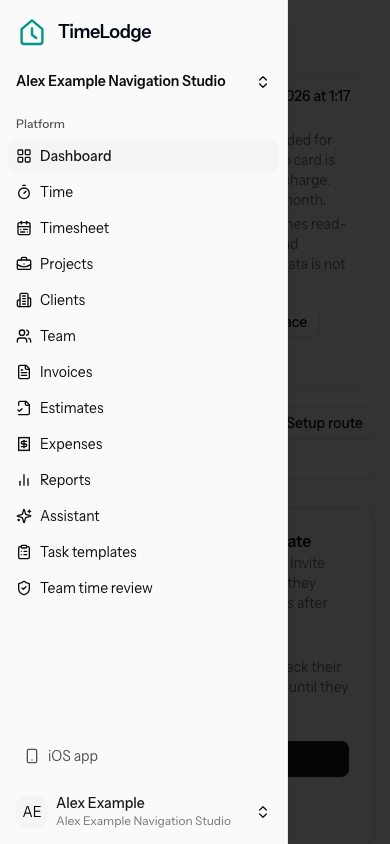
- Select Toggle sidebar at the top of the page.
- Select the destination you need.
- Confirm the sidebar closes and the new page heading appears.
- Select Toggle sidebar again when you need another destination.
Expected result
You can recognise the dashboard regions, open each main destination, and confirm which workspace is active. On a narrow screen, the same navigation opens as a temporary sidebar and closes after your selection.
Troubleshooting
- A dashboard card says “empty” or “Nothing to show”: The page loaded, but no records match that summary yet. Use Quick create or open the named destination to add or review records.
- The previous heading is still visible: Wait for the destination heading before selecting another control. If it does not change, reopen the sidebar and try once more.
- A link or action is missing: Your role does not include every owner control. Ask an Owner or Admin to check your access.
- You opened the wrong workspace: Open the workspace switcher and select the correct name before making changes.
- You see “Choose your plan”: The selected workspace has restricted access. Switch back to an available workspace, or ask its owner to review billing.
Related guides
Return to Dashboard, then choose the destination for the task you want to complete next.