Record a project cost, keep its billing treatment clear, and attach the receipt.
Before you begin
- Create the client and set up an active project.
- Confirm that you can use the project for new work. Owners and admins can use any active project. Other roles need an assignment unless the workspace allows unassigned project work.
- Know the purchase date, original currency, conversion rate, and tax treatment. Ask your accountant when you are unsure; TimeLodge applies the values you enter but does not decide them.
- Use a receipt without customer, payment, or account details. You can practise with this fictional sample receipt.

Roles and permissions
Every active role can record, change, and delete their own draft expenses. You can also attach or remove receipts while the expense is Draft and unlocked.
An Owner, Admin, Project Manager, or Finance Admin can open Categories to create or archive the shared category list. A Member can choose an active category but cannot manage that list. Archived categories remain on earlier expenses.
Actions, Add receipt, and receipt removal are hidden after an expense is submitted, approved, invoiced, or otherwise locked. Use your workspace's approval or correction route before trying to change it.
Expense fields
| Field | What it does |
|---|---|
| Project | Assigns both the client and project. The option shows Client • Project (code), so there is no separate client field. |
| Category | Groups the cost under an active shared category such as Office Supplies or Travel. |
| Date | Records when the cost occurred. A new form defaults to the workspace's current date. |
| Amount | Records the positive amount in the selected original currency. |
| Currency | Defaults to the project's currency. A different choice reveals a conversion field. |
| Conversion rate (1 USD → AUD) | Appears when the expense currency differs from the project currency. The exact label changes with the two selected currencies. |
| Tax rate (%) | Adds the entered percentage to the converted base amount. Leave it blank when no tax applies. |
| Markup (%) | Adds the entered percentage after tax. Leave it blank when you do not charge a markup. |
| Description | Explains the business purpose without storing private customer or payment information. |
| Billable | Keeps the expense eligible for a later invoice after any required approval. A non-billable project clears this by default. |
| Reimbursable | Marks a cost you expect to recover. It does not make the expense billable by itself. |
The dialog previews the subtotal, tax, markup, and total in the original currency. When you use a conversion rate, the saved card totals the expense in the project currency and retains the original amount and rate.
Record the expense
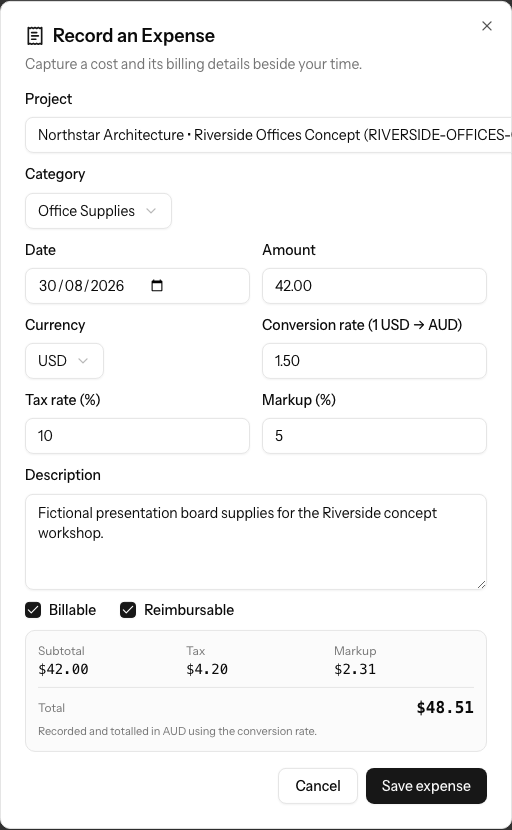
- Open Expenses and select Record expense.
- Choose Northstar Architecture • Riverside Offices Concept under Project.
- Choose Office Supplies under Category.
- Check Date, then enter
42.00under Amount. - Choose USD under Currency. Enter
1.50under Conversion rate (1 USD → AUD). - Enter
10under Tax rate (%) and5under Markup (%). - Enter
Fictional presentation board supplies for the Riverside concept workshop.under Description. - Keep Billable selected and select Reimbursable.
- Review the preview, then select Save expense.
Expected result: Expense recorded. appears. The new Draft card shows Office Supplies, Billable, and Reimbursable. It also shows the original 42.00 USD, the 1.5 rate, and the A$72.77 project-currency total.
Attach and check a receipt
Each receipt must be a JPG, JPEG, PNG, GIF, WebP, HEIC, HEIF, or PDF file no larger than 10 MB. TimeLodge accepts one file each time you choose Add receipt. You may add another supported file afterwards.
- On the draft expense, select Add receipt.
- To check validation safely, choose a harmless TXT file. TimeLodge shows The receipt field must be a file of type: jpg, jpeg, png, gif, webp, heic, heif, pdf. The expense remains unchanged.
- Select Add receipt again and choose
doc-007-sample-receipt.png. - Wait for Receipt attached. and check that its thumbnail appears.
- Select the thumbnail to open the stored receipt in a new tab when you need to review it.
Expected result: the receipt thumbnail stays with the expense. No filename, image, or link appears after a rejected upload.
Filter expenses and find missing receipts
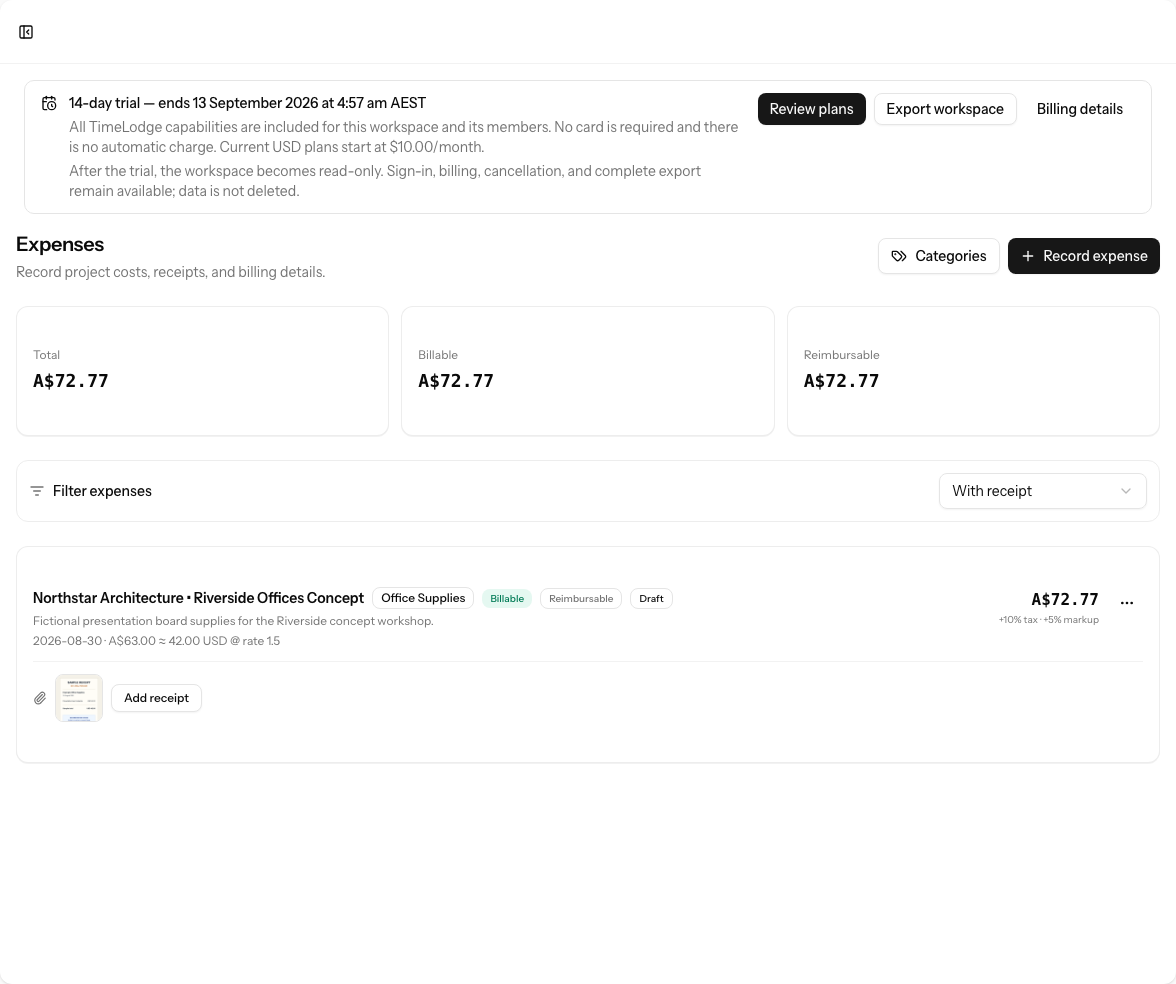
- Open Filter expenses.
- Choose With receipt to show expenses that have at least one attachment.
- Choose Missing receipt to find expenses that still need evidence.
- Use Billable or Non-billable to check billing classification.
- Choose All expenses to clear the filter.
Expected result: the URL and list follow the selected filter. No matching expenses appears when the selected state has no records.
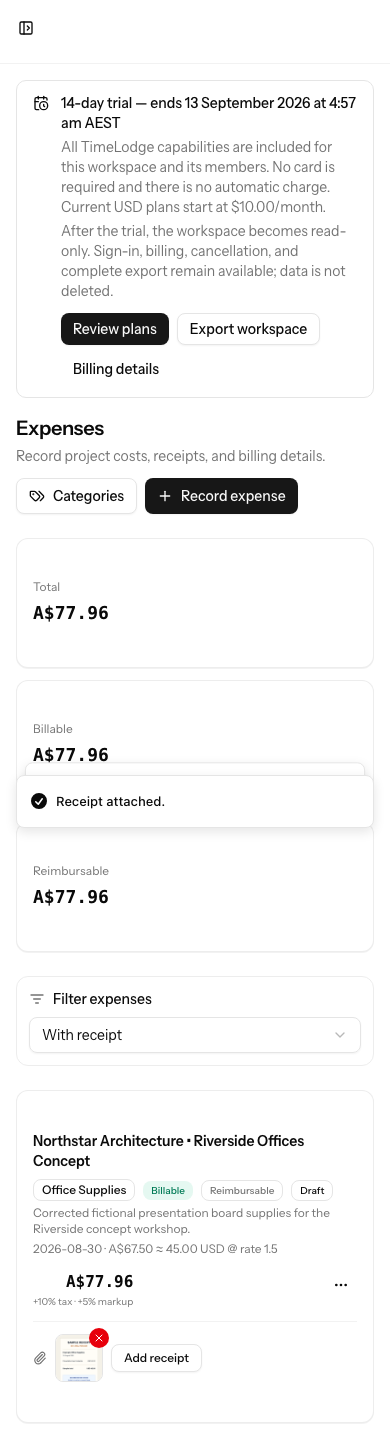
At a narrow width, the page actions move below the heading. Filter expenses fills the available width, and the receipt removal control stays visible without requiring hover.
Correct the expense
- Open Actions on the draft expense and select Edit.
- Change Amount from
42.00to45.00. - Change Description to
Corrected fictional presentation board supplies for the Riverside concept workshop. - Review the recalculated source and project totals.
- Select Save changes.
Expected result: Expense updated. appears. The card shows 45.00 USD, the retained conversion rate, and the corrected A$77.96 total.
Remove the receipt
- Find the sample thumbnail on the draft expense.
- Select Remove receipt doc-007-sample-receipt.png.
- Read Remove this receipt from the expense?, then confirm.
- Choose Missing receipt under Filter expenses.
Expected result: Receipt removed. appears. The thumbnail is gone, and the expense now appears under Missing receipt.
Delete the expense
- Open Actions and select Delete.
- Read the confirmation. For this walkthrough it says
Delete the expense for Riverside Offices Concept on 2026-08-30? This cannot be undone. - Confirm only when you no longer need the record.
Expected result: Expense deleted. appears and the expense leaves the list. Deletion is not reversible from the interface.
Expected result
You can record a fictional cost, preserve its original currency, apply tax, and classify its billing state. You can also validate, attach, find, review, and remove its receipt before deleting the draft expense.
Troubleshooting
- The receipt upload is rejected: Check the listed file types and keep each file at or below 10 MB. Export another supported copy rather than renaming an unsupported file.
- A receipt is missing: Choose Missing receipt under Filter expenses, then use Add receipt on the correct draft.
- The project is unavailable: Confirm that the project and its client are active. Ask an owner or admin to assign you, enable unassigned project work, or restore the client or project. Reopen Record expense after access changes.
- A conversion-rate message appears: Enter a positive rate for the exact direction shown in the label, or change Currency back to the project currency.
- The wrong client appears: Change Project. The client follows the project and cannot be chosen separately.
- No expense matches the filter: Choose All expenses, then check the expense's billable and receipt states.
- Actions or Add receipt is missing: The expense is no longer an editable, unlocked Draft. Use the authorised approval or correction route instead of creating a duplicate.
Related guides
Next, open Expenses and record the next real cost when you have its correct amount, tax treatment, and safe receipt ready.